


Origami World: Learn & Play
3.487.00 Reviews
App Specs
- Version
- 1.3.8
- Updated On
- License
- Free
- Downloads
- 1,000,000+
- Developer
- Neli Creative
- Categories
- Art & Design
- Platform
- Android
Screenshots
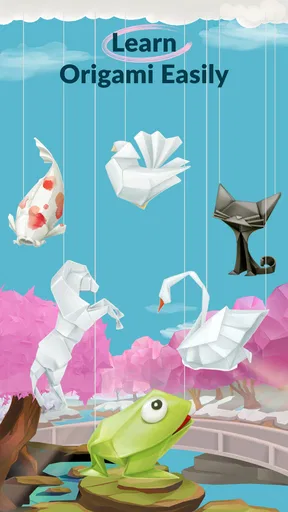
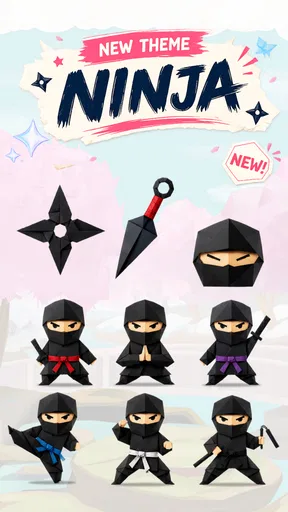
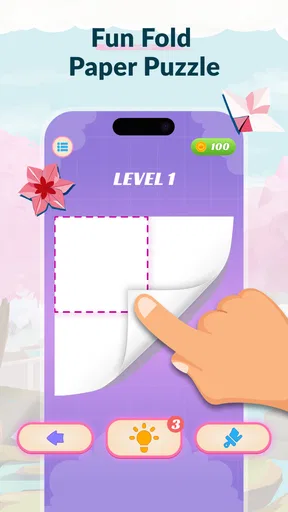
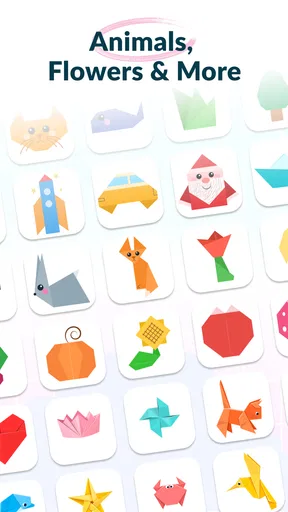
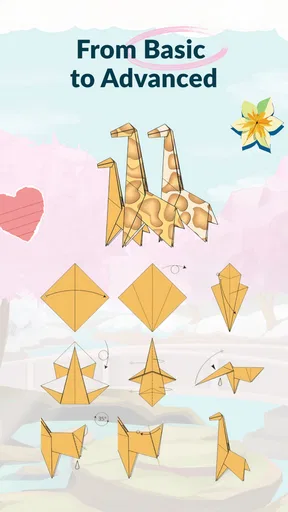
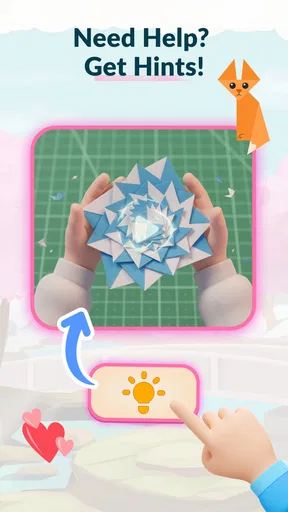


 Analysis by AppCompare
I like the idea behind Origami World: Learn & Play: a folding app should make the next crease feel possible, not turn a relaxing craft into a test of patience. This is an art and design app from Neli Creative, aimed at people who want guided paper-folding practice with a playful presentation. My main reservation is that an appealing concept does not, by itself, tell me how much guidance or control a particular user will find in the app. I would approach it as a beginner-friendly place to explore, while paying attention to the choices shown on the device rather than assuming anything about its data practices.
What kind of origami companion it is
The app is free to install and intended for everyone, so it is easy to consider for a family tablet, a classroom activity, or a short creative break. It has passed one million installs, with a 3.4 average from around 7,800 ratings. That mix suggests a substantial audience but also a divided experience: I would treat it as a useful option to try, not a guarantee that every folding guide will suit every learner.
Version 1.3.8 is the current release, and the app requires Android 9 or later. If you are choosing it for a child or an older device, those practical details matter more than the cheerful premise. The age classification is Everyone, but that is not a substitute for an adult checking the on-screen experience and purchase prompts before handing over a device.
Origami is unusually well suited to step-by-step instruction because each model is built from visible changes to a single sheet. A good guide needs to make the direction and order of folds clear, especially when the paper is rotated or a flap is tucked underneath. The app’s central appeal is that it brings guided folding and playful use together; I would judge it by whether the instructions make those transitions understandable, rather than by how many models or activities I might hope to find.
Trust starts with what you can actually see
For a creative app, trust is less about a polished theme and more about knowing what happens when you tap. I recommend taking a moment to inspect the device’s permission prompts and any privacy choices the app presents. Those are the places where a user can make an informed decision. I would not infer what information is collected, how it is handled, or whether an account is needed without a clear statement shown in the app or its privacy materials.
That caution is especially useful when the app is used by a child. Set it up together, read prompts aloud, and pause before granting any permission that does not seem necessary for the activity you want to try. If a prompt appears that you do not understand, declining it first is a sensible way to preserve choice; you can decide later whether a specific feature is worth enabling.
Make the most of a folding guide
My practical advice is to prepare the paper before opening a lesson: use a square sheet, place it flat, and keep a few spare sheets nearby. Origami folds are hard to undo cleanly once several layers build up, so starting again is often less frustrating than trying to rescue a crooked base. This is a small workflow change, but it makes guided practice feel calmer and helps a learner compare the result with the next step.
Worth Reading Before You Choose

EA SPORTS FC Mobile 26 Is a Bigger Football Game, but It Takes Time

Flipboard Shows What News Apps Must Do Beyond the Feed

Switching to Android Auto Means Rethinking Your Driving Routine

Google Calendar Makes a Crowded Week Easier to Manage

Ludo King Makes the Most of the Minutes Between Plans

Baby Panda World Brings Quick Play to Modern Phones, but Its Game Library Feels Busy
When following a visual instruction, pause after each major fold instead of racing ahead. Check whether the corners and edges line up before making the crease firm. If the guide advances automatically or the screen is difficult to view from your working position, stop between steps and reposition the device; keeping the model in view is more useful than trying to memorize a sequence. These habits are valuable in any folding lesson, and particularly so when a beginner is still learning what a valley fold or a reversed crease looks like.
A second useful approach is to use the app as a prompt rather than as a complete substitute for hands-on learning. Make one model while following the guidance, then try a second time with less frequent glances at the screen. That reveals whether the learner understands the structure or is only copying each movement. It also makes the activity easier to share: one person can hold the paper while another follows the sequence, then they can switch roles.
Where it fits in an everyday routine
Imagine a rainy afternoon when a child wants something to do but you would rather avoid another passive screen session. Put out scrap paper, choose a manageable folding activity, and use the app as a visual companion while making the object together. The paper itself becomes the focus, and the screen provides direction. I would keep expectations modest at first: a clean, simple result is more satisfying than choosing an elaborate design before anyone has learned how the instructions work.
It can also suit an adult who wants a compact creative pause between tasks. A few folds at a desk require little setup, and a finished paper shape can be a pleasant change from scrolling. For that use, the key question is whether the particular guide is legible and paced well on your screen. If you find yourself repeatedly losing the step or struggling to see which layer moves, a printed diagram or a slower video tutorial may be a better fit.
Compared with a general drawing app, Origami World is more focused: it directs attention toward paper structure and physical folds rather than freehand marks or digital brushes. Compared with a book, it may feel more approachable for someone who prefers a screen-led guide, while a book can be easier to keep open beside the work surface and review at a glance. Video tutorials can show motion more naturally, but they may be awkward when you need to stop at exactly the moment your own paper is in a different position. The best alternative depends on how you learn, not on a universal ranking.
Costs and the choices worth checking
The app is free, but it includes in-app purchases ranging from $2.49 to $35.99 per item. I would look carefully at what is offered before buying, especially if the device is shared. The presence of purchases does not tell you which content is free or whether a particular item is useful to your household, so I would try the available experience first and make any spending decision deliberately. On a child’s device, an adult should review purchase controls in the device settings as well as any prompts inside the app.
That is also part of user agency: you should be able to decide whether to continue with the free experience, enable a permission, or make a purchase without feeling hurried. Read each confirmation screen before proceeding. If the app’s controls are not clear to you, stop and check the relevant device settings rather than tapping through. This is a practical safeguard, not a claim about a specific account system or data policy.
For someone comparing choices, the rating is a reason to keep expectations measured rather than to dismiss the app outright. A 3.4 average across thousands of ratings reflects a range of reactions, while the 87 written reviews are a smaller set of detailed voices. I would use that context alongside a short personal trial: check whether the instructions suit your learning style, whether the free portion is enough, and whether the app feels comfortable to use on your device.
Who should try it, and who may prefer something else
I would recommend giving it a look if you are new to origami, enjoy learning through guided visual steps, or want a screen-based activity that still involves making something with your hands. It may also work well for adults and children folding together, provided an adult stays involved with device prompts and purchases. Having paper ready and taking breaks between steps can make the experience far more enjoyable than treating it as a race to finish a model.
I would skip it if you are looking for a comprehensive craft reference, need highly detailed explanations of folding terminology, or prefer to learn from a large, static diagram that remains visible while both hands are busy. It may also be the wrong choice if you want an app with clearly documented controls and privacy details before you begin and cannot find those answers in the app or its accompanying materials. In that case, a book or a tutorial from a source whose practices you can review may offer more confidence.
A practical way to decide after opening it
I would begin with one short session rather than committing to a long craft activity. Put the device where you can glance at it without shifting the paper out of position, and use an inexpensive spare sheet so a mistaken crease is no big deal. This makes it easier to notice whether the visual instructions are clear at your screen size and whether you can comfortably follow them with both hands occupied. If the first attempt feels confusing, try changing the viewing angle or slowing your own pace before deciding that the app is unsuitable.
For a group, I would make the first model together and agree that everyone can stop or restart without treating a misshapen result as failure. That simple ground rule matters because folding is precise: one early alignment error can affect the next few steps. A second sheet gives the learner a chance to repeat the opening folds with more confidence. If the app works as a shared prompt but not as a complete lesson, that can still be a worthwhile use—just pair it with someone who can demonstrate the tricky movement.
Before installing it on a device used by a child, I would also check whether the operating system is recent enough, review the purchase controls, and sit with them for the first session. Those checks answer practical concerns more reliably than assumptions based on a cheerful look or an age label. If a permission or purchase prompt appears, take time to read it together. The goal is not to make the activity feel risky, but to keep the adult and child aware of the choices being made on that particular device.
What I would want from the first few folds
A useful test is whether you can explain the next fold in your own words after seeing it once. If you can, the guide is helping you learn rather than merely prompting imitation. If you cannot, pause and inspect the paper’s orientation before continuing; rotating the sheet to match the image can be the missing step, not a lack of skill. This is especially helpful when a model begins to look different from the flat starting square as layers overlap.
I would also judge the experience by the quality of the finished process, not just the object. A slightly uneven model can still show that a beginner understands how corners meet and layers tuck together. Conversely, a polished result copied without understanding may be harder to recreate later. If your aim is to build a lasting folding habit, repeating a simple pattern is often more useful than moving quickly through unfamiliar designs.
My cautious verdict
My cautious verdict: Origami World: Learn & Play has an approachable creative purpose and a sensible place in a beginner’s toolkit, but I would treat it as one route into paper folding rather than the definitive way to learn. Try a simple activity with spare paper, check the visible permission and purchase choices, and see whether the instructions work for you. If they do, it can turn a quiet moment into a hands-on project; if they do not, a book or a carefully chosen video guide may be easier to follow.
Pros
- A hands-on format makes learning origami more engaging than reading diagrams alone.
- Short projects are easy to fit into a quick creative break.
- Folding activities can help develop patience and fine motor skills.
- Suitable for exploring paper crafts without buying specialist materials.
- A playful approach can encourage beginners to try unfamiliar folds.
Cons
- Some folds may be difficult to follow on a small phone screen.
- Paper quality and size can affect how well projects turn out.
- Beginners may need to pause and replay instructions frequently.
- The selection of projects may feel limited for experienced folders.
- Some activities may require adult help for younger children.
FAQs for Origami World: Learn & Play
What is Origami World: Learn & Play?
Origami World: Learn & Play is an educational craft app focused on making paper-folding easier to understand. It is designed to guide users through origami projects with visual instructions, so beginners can follow along without needing prior experience. The exact projects and learning tools may vary by app version, so check the current store listing for screenshots and details before downloading.
Is Origami World: Learn & Play suitable for beginners and children?
The app’s step-by-step approach can make origami approachable for beginners, and folding paper may be an enjoyable activity for children and families. Some models may still require patience, careful attention, and help from an adult, especially for younger users. Review the app’s age rating and store description, and supervise children when they use a device or handle small pieces of paper.
Does Origami World: Learn & Play require an internet connection?
Whether you can use Origami World: Learn & Play offline depends on how the app loads its lessons and whether individual instructions are stored on your device. Some apps need internet access for initial downloads, updates, or additional content, while others keep lessons available offline. If offline use matters to you, check the app’s current listing or test a lesson after installation.
Is Origami World: Learn & Play free, and does it include ads or in-app purchases?
Pricing, advertisements, and optional purchases can differ between the Android and iOS versions and may change over time. Before installing, check the app’s store page for its price, in-app purchase details, and any disclosures about ads or subscriptions. If a child will use the app, consider enabling parental controls so purchases cannot be made unintentionally.
What should I check before downloading Origami World: Learn & Play?
Confirm that your phone or tablet meets the app’s current operating-system requirements and has enough storage for installation and any downloaded lessons. Also review the developer information, recent update history, privacy disclosures, and requested permissions in the relevant app store. These details can help you judge whether the app suits your device and whether its data practices meet your expectations.


